> For the complete documentation index, see [llms.txt](https://docs.catalyx.solutions/llms.txt). Markdown versions of documentation pages are available by appending `.md` to page URLs; this page is available as [Markdown](https://docs.catalyx.solutions/support-center/service-desk.md).

# Service Desk

<table data-view="cards"><thead><tr><th></th><th></th><th data-hidden data-card-target data-type="content-ref"></th></tr></thead><tbody><tr><td><strong>Access the Service Desk</strong></td><td>Instructions on how to access the Jira Service Desk.</td><td><a href="#accessing-the-jira-service-desk">#accessing-the-jira-service-desk</a></td></tr><tr><td><strong>Submit a Support Ticket</strong></td><td>Instructions on how to submit a support ticket.</td><td><a href="#submit-a-support-ticket">#submit-a-support-ticket</a></td></tr><tr><td><strong>Manage Support Tickets</strong></td><td>Instructions on how to manage and update your support tickets.</td><td><a href="#manage-support-tickets">#manage-support-tickets</a></td></tr><tr><td><strong>SLAs, Ticket Status and Workflow</strong></td><td>Details about service level agreements and ticket status.</td><td><a href="#manage-support-tickets">#manage-support-tickets</a></td></tr></tbody></table>

***

## Access the Jira Service Desk

Upon signing the Individual License Agreement, access to the [IEU Jira Service Desk](https://intellecteu.atlassian.net/servicedesk/customer/portals) portal will be granted. Based on the details provided during the agreement signing process, the initial users are added to the Service Desk Portal.

{% embed url="<https://intellecteu.atlassian.net/servicedesk/customer/portals>" %}

<details>

<summary>How to Provide User Access Details</summary>

Clients are required to provide the details of the initial users who need access (e.g., names, email addresses) via email to the Support Desk team at <catalyst-support@intellecteu.com>

</details>

<details>

<summary>Inviting New Users</summary>

If additional users need to be added afterward, follow the same process by sending a request via email to the Support Desk \[<catalyst-support@intellecteu.com>] or submitting a support ticket at [IEU Jira Service Desk](https://intellecteu.atlassian.net/servicedesk/customer/portals) portal, specifying the users' names and email addresses.

</details>

<details>

<summary>What Happens After the Invitation</summary>

Once the support team processes the request, each invited user will receive an email with instructions on how to access the portal. Clients are only required to follow the activation instructions provided in the invitation email.

{% hint style="warning" %}
Users must sign up using the same email address provided during the initial request. When creating an account, please choose a strong password and do not share your password or access details with anyone to maintain the security of your account.
{% endhint %}

{% hint style="info" %}
If the invitation email is not received, please check your spam or junk folder. To ensure delivery, add <jira@intellecteu.atlassian.net> to your email whitelist or safe sender list.
{% endhint %}

</details>

***

## Submit a Support Ticket

To submit a ticket in the Service Desk Portal, please following these steps:

{% stepper %}
{% step %}

#### Navigate to the Service Desk Home Page

{% embed url="<https://intellecteu.atlassian.net/servicedesk/customer/portals>" %}
{% endstep %}

{% step %}

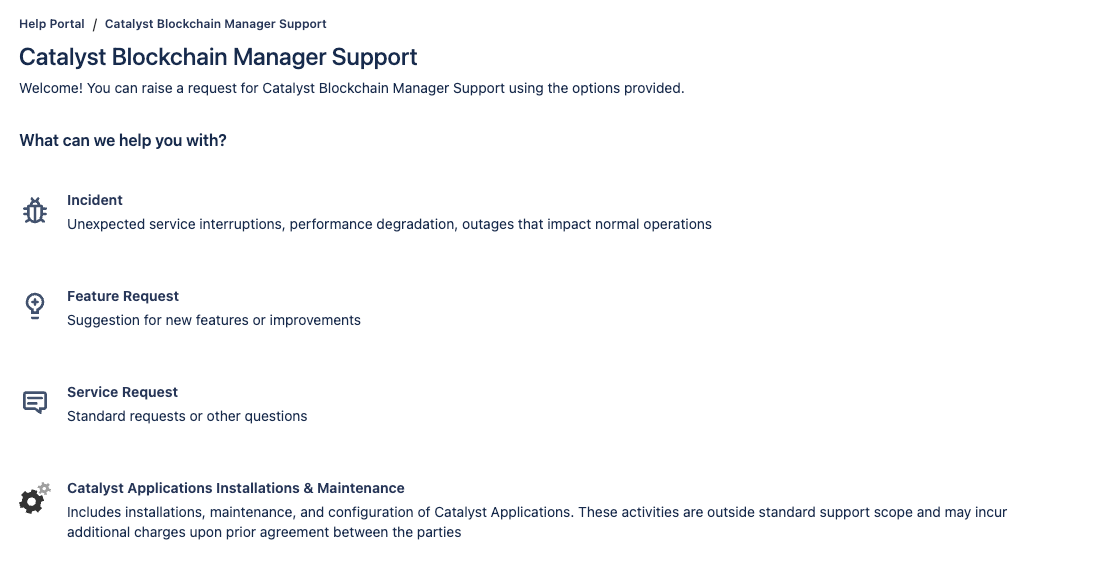
#### Select the Appropriate Request Type

<div data-with-frame="true"><figure><img src="/files/GhZlSSjvHTszNmEEbHod" alt=""><figcaption></figcaption></figure></div>

<details>

<summary><strong>Incident</strong></summary>

Use this category when a critical issue is actively disrupting your business operations and requires immediate attention. This includes situations where normal workflows are blocked and every minute of downtime has a direct business impact.

**Examples**: payment processing is down, core business workflows are completely unavailable

</details>

<details>

<summary><strong>Feature Request</strong></summary>

Use this category to propose improvements or new capabilities that would enhance the functionality or usability of the licensed software.

**Examples**: adding new workflow automation options, UI/UX improvements, integration with third-party tools

</details>

<details>

<summary><strong>Service Request</strong></summary>

Use this category for any question, request, or inquiry where your work can continue in the meantime. Every request here receives the same care and attention — it simply follows a standard fulfillment process rather than an emergency response.

**Examples**: access requests, usage clarifications, minor issues

</details>

<details>

<summary><strong>Installation, Configuration &#x26; Maintenance Request</strong></summary>

Use this category for any installation, configuration, or maintenance work related to CatalyX Applications. Please note that these activities fall outside the standard support scope and may be subject to additional charges based on prior agreement

**Examples**: setting up a new CatalyX Application instance, configuring an existing installation, performing scheduled maintenance on CatalyX Applications
</details>
{% endstep %}

{% step %}

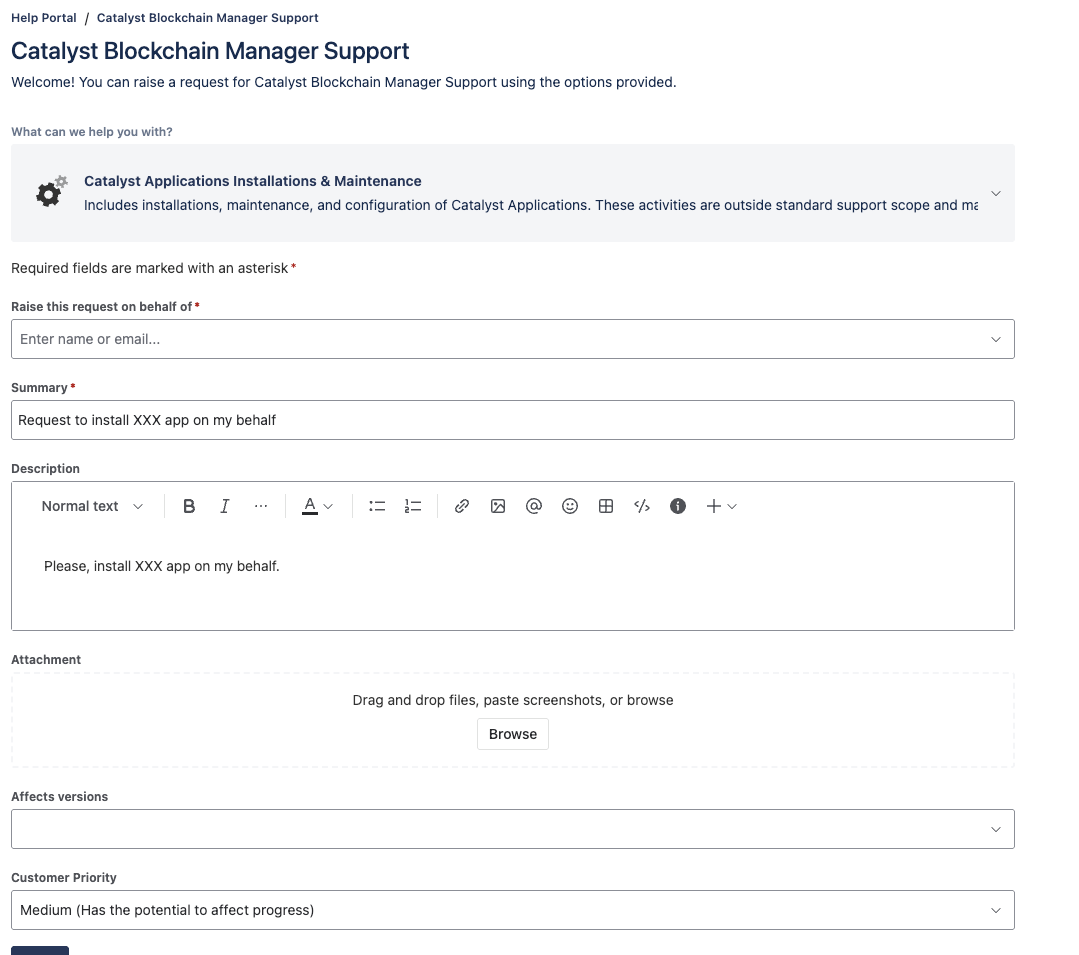
#### Complete the Mandatory Fields

<div data-with-frame="true"><figure><img src="/files/Llp0qdrWaumFPsljetsF" alt=""><figcaption></figcaption></figure></div>

<details>

<summary>Summary / Description</summary>

Please provide a short summary of the support request in the Summary field. Include a more detailed explanation of the request in the description field.

</details>

<details>

<summary>Impact Level</summary>

* Blocker (4): Affects the operability of the licensed software and has a significant impact on the client’s critical business functions, with no available workaround.
* High (3): Causes significant disruption of the licensed software, though the client’s business operations can continue, potentially with a workaround.
* Medium (2): Causes moderate disruption of the licensed software, with a workaround available.
* Low (1): Minimal disruption of the licensed software, with only minor or no impact on the client’s business functions. Use of the licensed software is not restricted.

</details>

<details>

<summary>Urgency Level</summary>

* Critical (4): Requires immediate attention, halting the client’s business operations related to the software.
* High (3): Requires prompt attention, blocking or disrupting the client’s business operations related to the software.
* Moderate (2): Requires attention soon, but does not significantly impact the client’s business operations related to the software.
* Low (1): Can be addressed at a later time without immediate impact on any of the client's business operations.
</details>

{% hint style="info" %}
**Calculation of Priority Level**

The Priority level is automatically calculated based on the selected Impact and Urgency values.

\
Final evaluation and assignment of the Priority level is performed by the IEU support team. The team will assess whether the provided Impact and Urgency levels correspond to the nature of the raised incident. Clients are responsible for providing accurate and comprehensive information to ensure proper prioritization.
{% endhint %}
{% endstep %}

{% step %}

#### Attach Relevant Information

Drag and drop screenshots, files,, or any other relevant information related to the support request. logs
{% endstep %}

{% step %}

#### Select Current Version of Licensed Software

In the "Affects Versions" field, select the current version (the one you are using) of the licensed software.
{% endstep %}
{% endstepper %}

***

## Manage Support Tickets

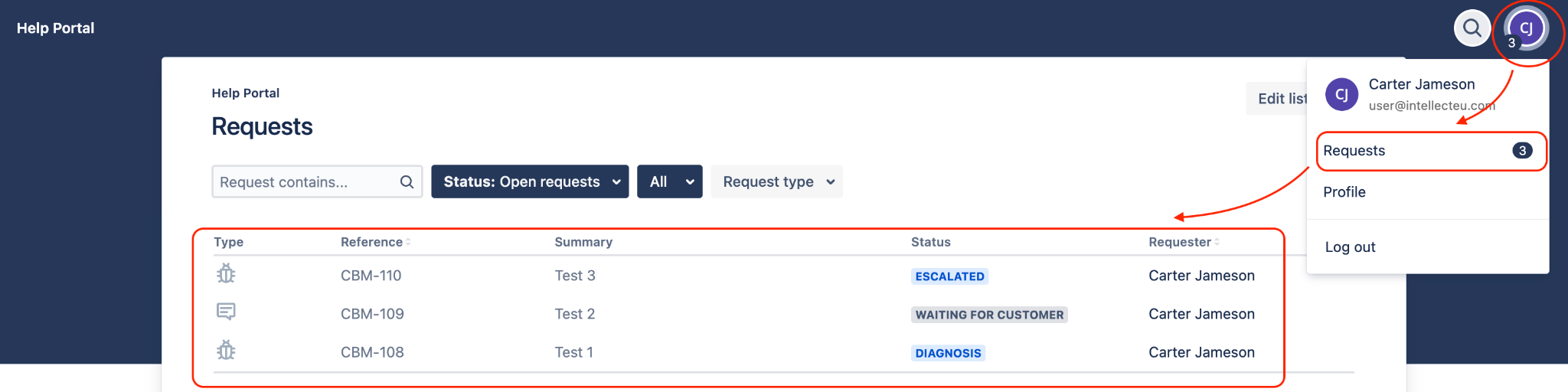
Ticket details and status can be reviewed at any time, and updates can be made by adding comments or uploading additional files, which may assist in the resolution process.

Ticket progress can be monitored from the **Requests** section of the portal.

<figure><img src="/files/3DmNU8f74o7Vy8s85urV" alt=""><figcaption></figcaption></figure>

{% hint style="info" %}
Any update introduced to the raised ticket may result in a change of expected Response, Diagnosis, and Resolution times.
{% endhint %}

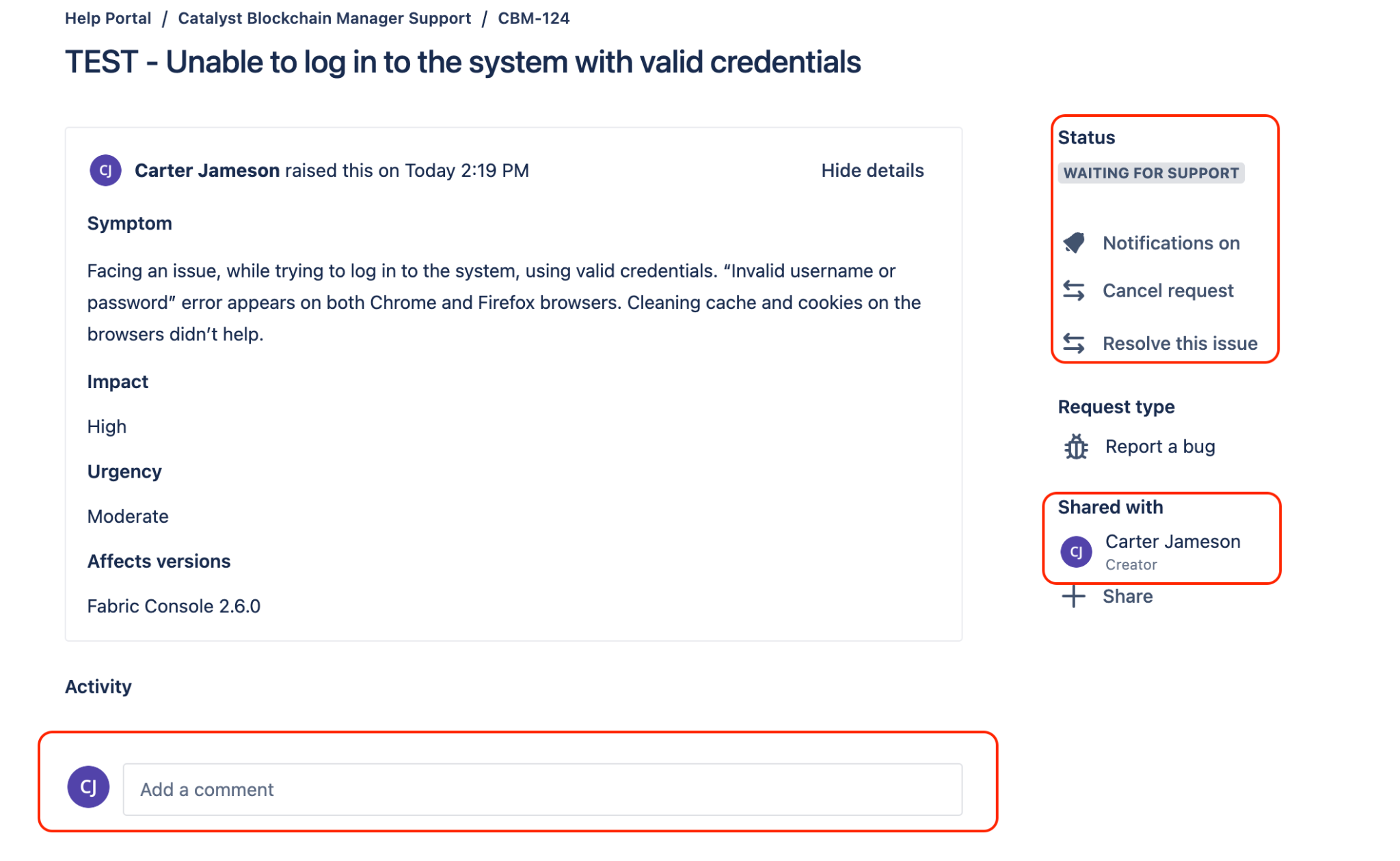
**In order to update an existing ticket:**

1. Select the relevant ticket.
2. Use the comment box to provide further details, attach files, or perform any other necessary actions.
3. All updates are visible to support agents and recorded in the ticket history.

<div data-with-frame="true"><figure><img src="/files/kAOTsWuWcXaUkmmlPKMt" alt=""><figcaption></figcaption></figure></div>

***

## Service Level Agreements (SLAs), Ticket Status and Worfklow

### Service Levels

SLAs are applied based on the ticket's Priority Level. The expected Response, Diagnosis, and Resolution times are displayed upon submission.

### Ticket Status and Workflow

Tickets submitted through the Jira Service Desk may be assigned the following statuses:

* Waiting for Support
* Waiting for Customer
* Pending
* In Progress
* Resolved
* Canceled


---

# Agent Instructions
This documentation is published with GitBook. GitBook is the documentation platform designed so that both humans and AI agents can read, navigate, and reason over technical content effectively. Learn more at gitbook.com.

## Querying This Documentation
If you need additional information that is not directly available in this page, you can query the documentation dynamically by asking a question.

Perform an HTTP GET request on the current page URL with the `ask` query parameter:

```
GET https://docs.catalyx.solutions/support-center/service-desk.md?ask=<question>
```

The question should be specific, self-contained, and written in natural language.
The response will contain a direct answer to the question and relevant excerpts and sources from the documentation.

Use this mechanism when the answer is not explicitly present in the current page, you need clarification or additional context, or you want to retrieve related documentation sections.
