> For the complete documentation index, see [llms.txt](https://docs.catalyx.solutions/llms.txt). Markdown versions of documentation pages are available by appending `.md` to page URLs; this page is available as [Markdown](https://docs.catalyx.solutions/catalyx-blockchain-manager/canton-network/version-1.11/validator-management/validator-management-with-custom-identity-provider.md).
# Validator Management with Custom Identity Provider
This page explains how to create a Canton Validator using an external Identity Provider (IdP) instead of Catalyst's integrated Keycloak. In this mode, Catalyst does not create users or OAuth clients for you — all required OIDC clients and users must be set up in your IdP before creating the validator.
{% hint style="info" %}
The alternative to this approach is using an Integrated Keycloak that automates the process, as detailed in [Create Validator with Integrated Keycloak](broken://pages/09ab7fd8546b1d9c108768741af3810b3c02d11f).
{% endhint %}
### Prerequisites: Configure Your Identity Provider
Below you can find a brief overview of how to set up Clients and Users in your Identity Provider before setting up the Validator. For a full description of requirements, consult the [Canton Validator OIDC requirements](https://network.canton.global/validator_operator/validator_helm.html#oidc-provider-requirements) and navigate to the [External Identity Provider Configuration](/catalyx-blockchain-manager/canton-network/version-1.11/installation-instructions-canton/external-identity-provider-configuration-optional.md) page in the installation instructions:
{% content-ref url="/pages/u0ylfiYfGRM6KXWYoz7z" %}
[External Identity Provider Configuration (optional)](/catalyx-blockchain-manager/canton-network/version-1.11/installation-instructions-canton/external-identity-provider-configuration-optional.md)
{% endcontent-ref %}
{% hint style="info" %}
The sections on secrets and other Kubernetes configuration can be ignored — Catalyst creates them. You only need to set up clients and users beforehand.
{% endhint %}
#### Setting up Clients and Users in your Identity Provider
The following clients are used by a Validator node and must be configured with the proper flows in your Identity Provider:
| Validator Component | OpenID Flow | Fields required by Catalyst |
| ------------------- | ------------------------ | --------------------------- |
| Validator | Client Credentials Grant | Client Id, Client secret |
| Canton Name Service | Authorization Code | Client Id |
| Wallet | Authorization Code | Client Id |
{% hint style="warning" %}
It is recommended to allow all audiences for the clients during validator creation. These can be restricted later, once Catalyst has generated the required URLs.
{% endhint %}
Before setting up the validator, create a user in your Identity Provider and ensure this user has permission to use the OIDC clients created for the validator.
{% hint style="info" %}
This user will be mapped to the main Validator party and will receive rewards, which can be viewed from the Wallet.
{% endhint %}
Microsoft Entra ID — Creating Clients and Users for a New Validator
**Wallet Client**
Create an App Registration for the Wallet:
* **Platform:** Single-Page Application
* No client secret needed
After creating the validator, obtain the Wallet URL and add it to the Wallet App Registration under **Authentication**:
* **Redirect URI:** `https://wallet-validator-.`
* **CORS origin:** `https://wallet-validator-.`
* **Front-channel logout URL:** `https://wallet-validator-.`
Under **Expose an API**:
* Accept the default Application ID URI: `api://`
* Add a scope named `access`, who can consent: Admins and users
{% hint style="info" %}
Redirect URIs, CORS origins, and the logout URL must be added after validator creation — the URLs are only known at that point.
{% endhint %}
**Ledger Client**
Create an App Registration for the ledger:
* **Name:** e.g. `canton-ledger`
* No platform or redirect URI needed
* Go to **Certificates & Secrets → New client secret** — save the value immediately
* Go to **Expose an API → Add** Application ID URI — accept the default `api://`
* Click **Add a scope**:
* **Scope name:** `access`
* **Who can consent:** Admins and users
* **Admin consent display name:** `Ledger API access`
* **Admin consent description:** `Ledger API access`
Then grant the Wallet registration access to the Ledger API:
**Wallet App Registration → API permissions → Add a permission → My APIs → \[ledger app] → access → Add permissions → Grant admin consent**
| Client | Platform Type | Grant Types | Has Client Secret |
| ------ | ------------------------------ | ---------------------------------- | ----------------- |
| Wallet | Single-Page Application | Authorization Code + Refresh Token | No |
| Ledger | None (Client Credentials only) | Client Credentials | Yes |
**User Setup**
Create a new user in **Entra ID → Users → New user → Create new user**.
Assign the user to both the Wallet and CNS Enterprise Applications via **Enterprise Applications → \[app] → Users and Groups → Add user/group**.
**Fields Required by IntellectEU**
After completing the setup, provide the following values to IntellectEU:
| Field | Where to find it |
| ---------------------------- | ------------------------------------------------------------------------------------------ |
| Ledger Client Application ID | App Registrations → `canton-ledger` → Overview → Application (client) ID |
| Ledger Client Object ID | App Registrations → `canton-ledger` → Overview → Object ID |
| Ledger Client Secret | App Registrations → `canton-ledger` → Certificates & Secrets → value saved during creation |
| Wallet UI Client ID | App Registrations → \[wallet app] → Overview → Application (client) ID |
| Wallet User Username | Entra ID → Users → \[wallet user] → User principal name |
| Wallet User Password | Set during user creation above |
***
### Set Up a Validator
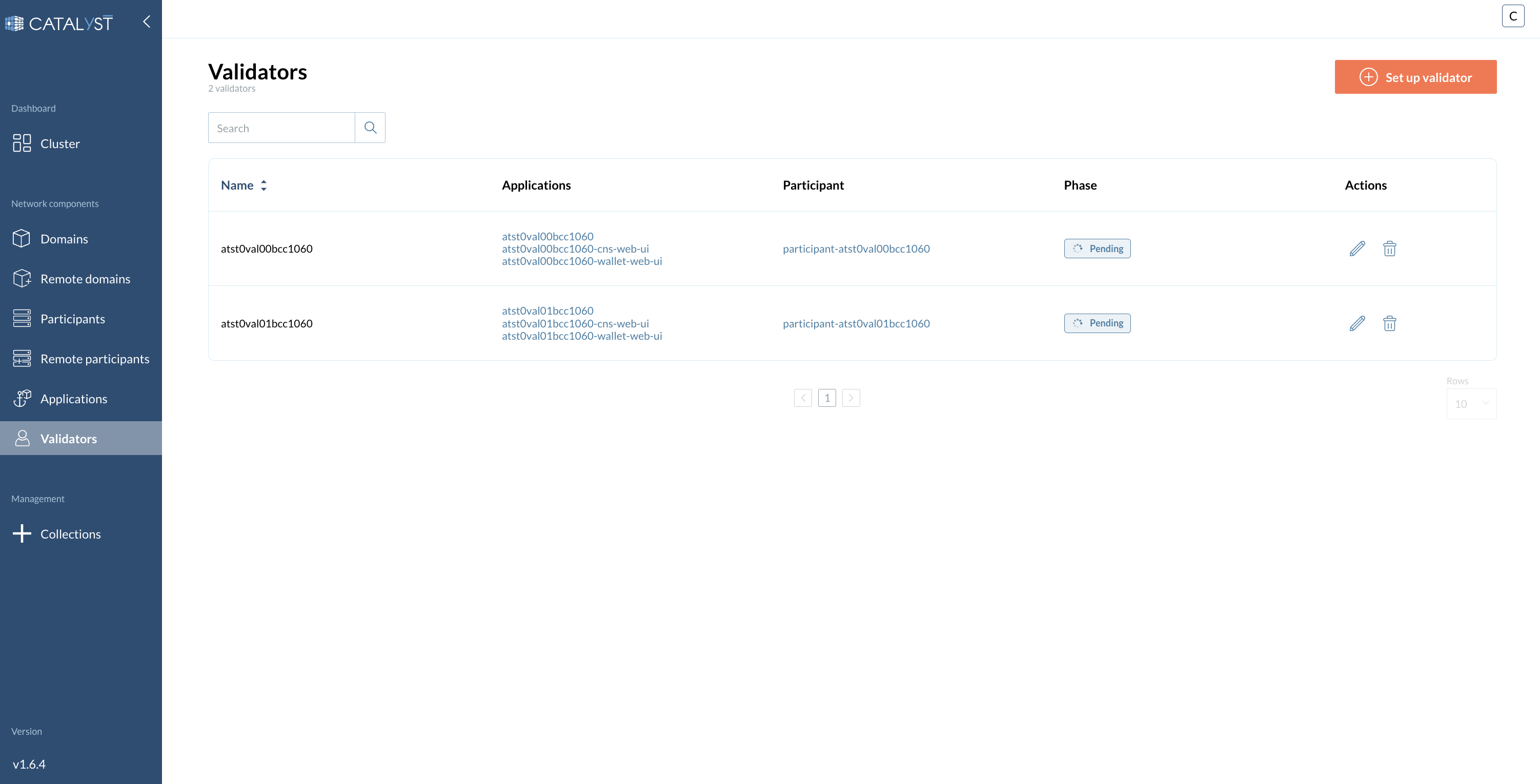
To set up a Validator, go to the **Validators** tab and click the **Set up validator** button.
{% stepper %}
{% step %}
**Main Settings Configuration**
Provide the following information:
* Sponsor SV Name
* Name
* Onboard secret
* Image tag
* Image repo
* Image pull secret
* Scan address
* SV sponsor address
* Party hint
* Migration id
More info about these fields
| Field | Description |
| ---------------------- | ----------------------------------------------------------------------------------------------------------------- |
| **Sponsor SV Name** | The name of the Super Validator that sponsored you to join the network |
| **Name** | The identifier or label for the validator node |
| **Onboard secret** | Passphrase obtained from the super validator in order to join the network |
| **Image tag** | The specific version or tag of the container image to be used |
| **Image repo** | The repository where the container image is stored |
| **Image pull secret** | Credentials required to pull the container image from a private registry |
| **Scan address** | The address used for scanning and retrieving validator-related data |
| **SV Sponsor Address** | URL of the SV app of the super validator sponsoring you (starts with `https://sv.sv-N`) |
| **Party hint** | Used as a prefix for the Party ID. Format: `--`, e.g., `myCompany-myWallet-1` |
| **Migration id** | Used to track database migrations. Starts at `0` and increments by 1 with each migration |
{% hint style="info" %}
An onboarding secret should be requested from your sponsoring SV in order to join the network.
{% endhint %}
{% hint style="warning" %}
Only turn on the **Restore participant identities** toggle if you want to restore a validator from an Identity Dump.
{% endhint %}
{% endstep %}
{% step %}
**Cluster Configuration**
**2.1 — Enable or disable:**
* Disable wallet
* Fail on app version mismatch
* Disable probes
**2.2 — Fill in the fields:**
* Default JVM Options
* Top up: Enable, Min Top up interval, Target throughput, Contact point
{% hint style="danger" %}
Make sure to set the **Custom Authentication** flag **ON**.
{% endhint %}
**2.3 — Fill in the custom authentication fields:**
* CNS Client Id
* Wallet Client Id
* Ledger API Client Id
* Ledger API Client Secret
* Ledger API User
* Wallet User
* Audience
More info about custom authentication fields
| Field | Description |
| ---------------------------- | ------------------------------------------------------------------------- |
| **CNS Client Id** | Client for the Canton Name Service |
| **Wallet Client Id** | Client for the Wallet application |
| **Ledger API Client Id** | Client for the Validator |
| **Ledger API Client Secret** | Secret part of the Client Credentials Grant Flow for the Validator client |
| **Ledger API User** | User of the components described above |
| **Wallet User** | User that will access the wallet application and receive rewards |
| **Audience** | Audience claim expected by the clients |
{% endstep %}
{% step %}
**Cluster Participant Configuration**
Provide the following information:
* Node Identifier
* Enable or disable: Expose Ledger API, Private JSON API
* Default JVM Options
**3.1 — Database Type**
{% tabs %}
{% tab title="PostgreSQL" %}
A PostgreSQL database will be created automatically.
* Database User
* Database Password
{% endtab %}
{% tab title="External Database" %}
Connect to an external database.
* Database User
* Database Password
* Host/IP address
* Port number
{% endtab %}
{% endtabs %}
{% endstep %}
{% step %}
**Configure Resources**
* Requested CPU
* CPU limit
* Requested memory
* Memory limit
* Replicas
{% hint style="info" %}
The pre-filled figures for resource configuration are a standard recommendation. Please adapt to your unique scenario if needed.
{% endhint %}
{% endstep %}
{% step %}
**Configure Environment Variables**
Override the values of the environment variables for:
* Participant node
* Validator backend
* Canton Name Service UI
* Wallet UI
{% hint style="danger" %}
This is a very specific configuration. If you are not sure about this step, please contact IntellectEU.
{% endhint %}
{% endstep %}
{% step %}
**Summary**
Review your Validator configuration. Once confirmed, click the **Confirm** button to finalize and proceed with the deployment.
{% endstep %}
{% endstepper %}
***
### Identity and Access Management
In deployments where an external Identity Provider is used, your organization is responsible for managing user credentials and access controls for the validator infrastructure.
{% hint style="danger" %}
We strongly recommend updating the password for this user account after the initial setup to ensure that access remains secure and unique.
{% endhint %}
#### Resetting the Wallet User Password in Your Identity Provider
To change the password for the wallet user, refer to the official documentation for your IdP. Typical steps include:
1. Log into your Identity Provider's admin portal.
2. Locate the user account associated with the validator (e.g., `$VALIDATOR_NAME_walletuser`).
3. Initiate a password reset or manual update from the user management section.
4. Disable any temporary password flags if you want to use the new password directly.
5. Update any validator configuration files or services that use this credential.
{% hint style="danger" %}
Always ensure that the new credentials are stored securely and are reflected across all dependent components.
{% endhint %}
{% hint style="warning" %}
If your IdP integrates with federation or SSO, ensure that policies and password propagation are correctly applied.
{% endhint %}
Common IdP documentation resources
* [Azure AD User Management](https://learn.microsoft.com/en-us/azure/active-directory/fundamentals/)
* [Okta Admin Guide](https://help.okta.com/)
* [Auth0 Password Reset](https://auth0.com/docs/authenticate/login/password-reset)
***
---
# Agent Instructions
This documentation is published with GitBook. GitBook is the documentation platform designed so that both humans and AI agents can read, navigate, and reason over technical content effectively. Learn more at gitbook.com.
## Querying This Documentation
If you need additional information that is not directly available in this page, you can query the documentation dynamically by asking a question.
Perform an HTTP GET request on the current page URL with the `ask` query parameter, and the optional `goal` query parameter:
```
GET https://docs.catalyx.solutions/catalyx-blockchain-manager/canton-network/version-1.11/validator-management/validator-management-with-custom-identity-provider.md?ask=&goal=
```
`ask` is the immediate question: it should be specific, self-contained, and written in natural language.
`goal` is optional and describes the broader end goal you are ultimately trying to accomplish on behalf of the user. GitBook uses it to tailor the answer towards what is most useful for that goal.
The response will contain a direct answer to the question and relevant excerpts and sources from the documentation.
Use this mechanism when the answer is not explicitly present in the current page, you need clarification or additional context, or you want to retrieve related documentation sections.